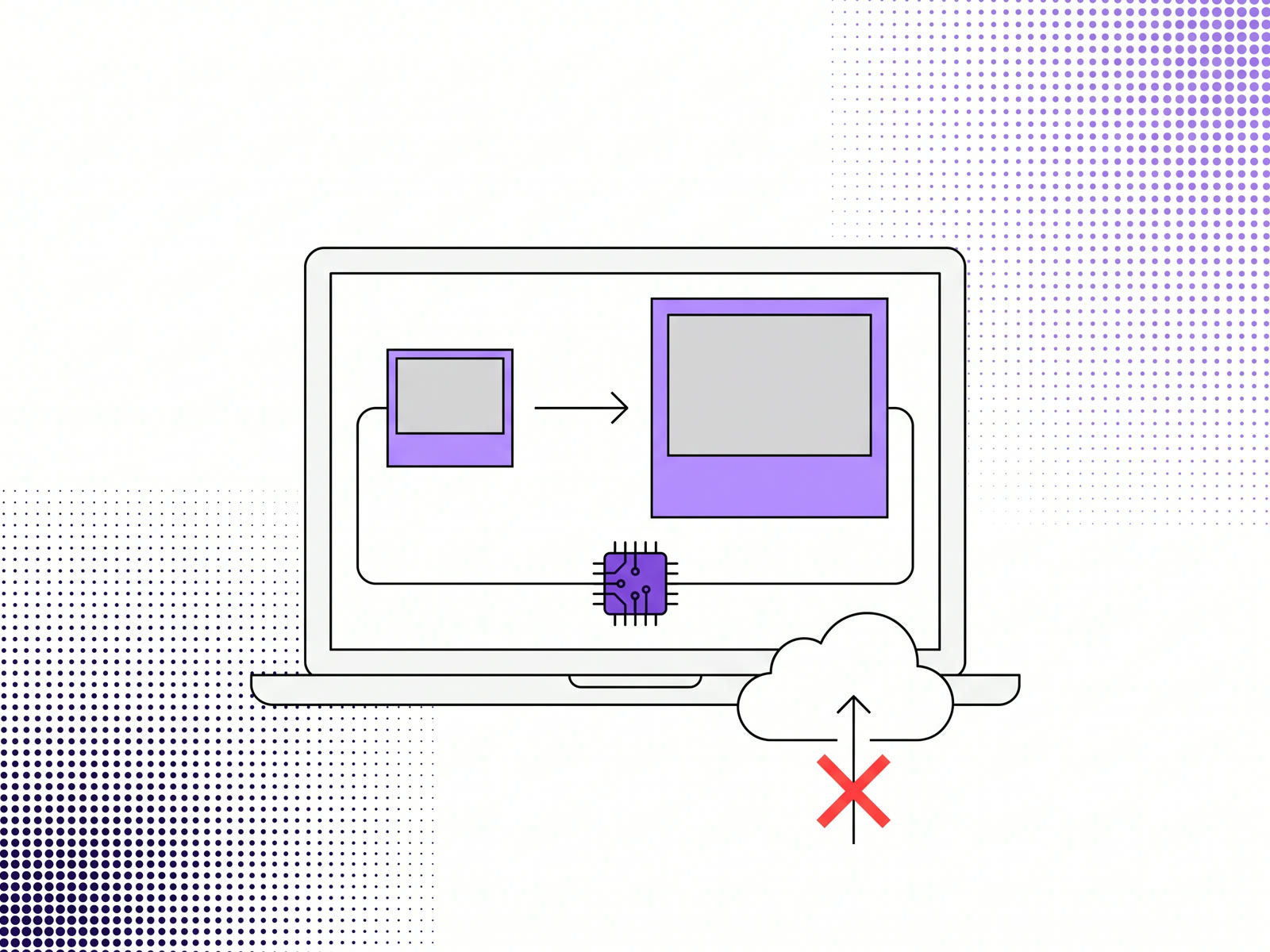
To upscale an image for free without uploading it, use an upscaler whose AI model runs in your browser. The model downloads to your device once, the enlarging happens on your own graphics card or processor, and the photo never goes to a server. Our free AI image upscaler works this way: 2× is free, and downloading needs only a free account.
Why "without uploading" matters
Most free upscalers work by sending your photo to their server, running the model there, and sending the result back. That's fine for a landscape. It is less fine for a client's unreleased product shots, a scan of a document, or photos of people who didn't agree to be on someone else's server.
An in-browser upscaler removes that question. The cost moves to your device instead: the first run downloads the model, and a large photo takes longer on a laptop than on a data centre's hardware.
How an in-browser upscaler works
- The model downloads to your browser. It's kept there, so later visits don't download it again.
- Your browser runs it. Where the browser supports WebGPU, the model runs on your graphics card. Where it doesn't, it runs on the processor in the background, which is slower but works the same.
- The result is made on your device. You compare it with the original and save it.
Nothing about this needs an account or a server. The only part that touches ours is the check for which scales your plan includes.
How to do it, step by step
- Open the image upscaler and add your photo. JPG, PNG and WebP all work.
- Pick a style. There are four, each an open model: Quick and Sharp use Real-ESRGAN (Quick is the lightest download, 2 to 5 MB; Sharp is the default), Max detail uses 4xNomos8kSC and Natural uses BSRGAN.
- Pick 2× and upscale.
- Compare before and after. If the result looks too crisp or too soft, try another style on the same photo; it's quicker than guessing.
- Download as PNG, JPG or WebP. Downloading asks you to sign in to a free account.
The heavier styles download their model the first time you use them, between 34 and 67 MB, so the first upscale with Max detail or Natural takes longer than the next one.
What's free, and what isn't
Free: 2× upscaling, one photo at a time, and the download with a free account.
On a monthly or yearly plan: 4× and 8×, batches of up to 30 photos, and downloading them all as one ZIP.
Tips for a better result
- Start from the largest original you have. An upscaler works with the pixels it's given. A screenshot of a photo has already lost detail the original still had.
- Don't upscale a photo that's been compressed many times if you can find an earlier copy. Compression blocks get enlarged along with everything else.
- Upscale once, by the factor you need. Running 2× twice makes the model guess twice, and it takes longer.
- Save as PNG if you'll edit the result further, so you don't add another round of compression.
If you need a specific size, such as a 4K screen, how far an AI upscaler can enlarge a photo works out which scale gets you there.
FAQ
Is there a free AI image upscaler that doesn't upload my photo?
Yes. Upscalers that run their model in the browser, such as ours, process the photo on your own device. Ours is free at 2×.
Why is the first upscale slow?
The model downloads the first time you use a style. After that the browser keeps it, so the next upscale starts straight away.
Does upscaling in the browser work on any computer?
It works in current browsers. With WebGPU it uses your graphics card and is faster; without it, it runs on the processor.
Can I upscale several photos at once?
Up to 30 photos at once on a monthly or yearly plan. The free plan upscales one photo at a time.